Setup
Establishing Host Connection and Power
Modular Edge Platform devices are connected to the Network via Ethernet.
Power Input
The SIO07 is supplied via an M12-4pin-A-coded (male) connector. The following picture shows the power supply connector location.
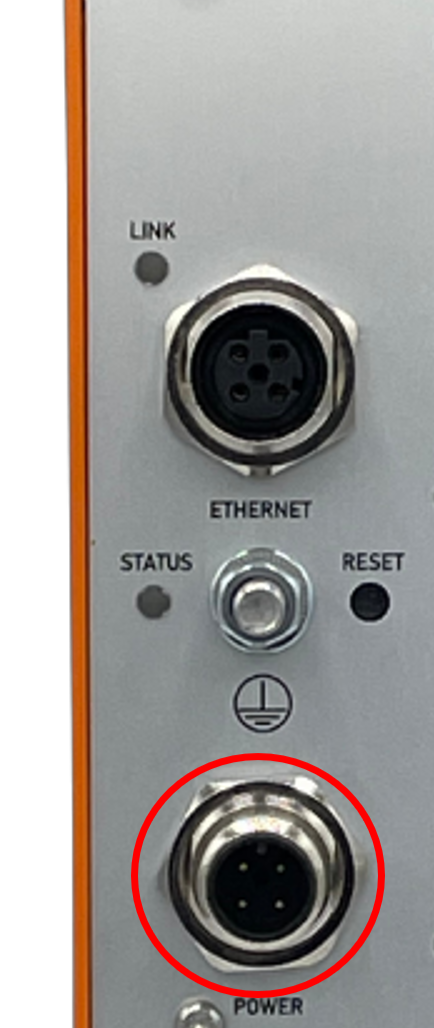
Pinning of power supply connector:

| Pin | Signal Designator | Signal Description |
|---|---|---|
| 1 | Vin+ | Pos. supply voltage |
| 2 | N/C | Not connected |
| 3 | Vin- | Neg. supply voltage |
| 4 | Vin- | Neg. supply voltage |
Ethernet Interface
The SIO07 provides a 100MBit/s Ethernet interface via an M12-4pin-D-coded (female) connector.
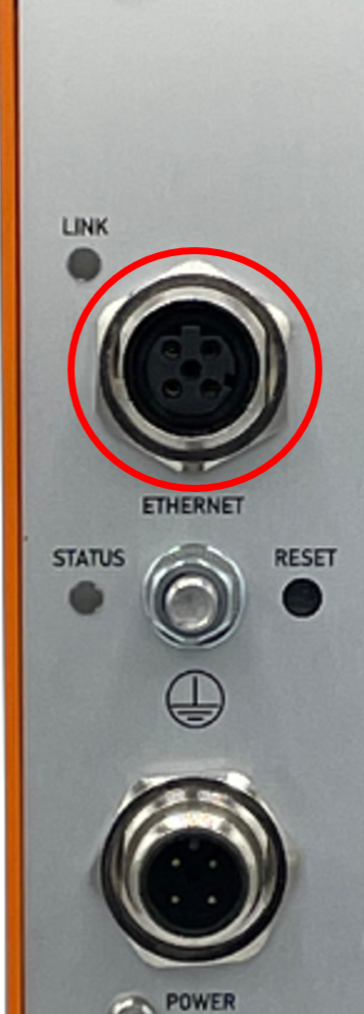
Pinning of Ethernet connector:
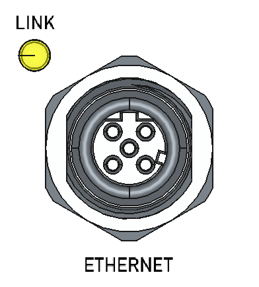
| Pin | Signal Designator | Signal Description |
|---|---|---|
| 1 | TD+ | Transmit (Diff +) |
| 2 | RD+ | Receive (Diff +) |
| 3 | TD- | Transmit (Diff -) |
| 4 | RD- | Receive (Diff -) |
Supply the SIO07 by a power supply, capable of delivering 24V..110VDC, 5W. Use pins 1 and 3 of the M12-4pin-A-coded power connector to supply the power. Observe correct polarity.
Connect the Ethernet interface to your network via an appropriate M12-4pin-D-coded Ethernet cable.
Initial Device Configuration
For initial configuration, connect the SERVICE interface to a computer via USB cable and start a terminal program. See Instructions for details.
Press Enter in the Terminal program, and you should see the config prompt:
config>
Configure Device ID
To identify the device in the network, configure a device ID. This ID is used as the network hostname and as a prefix to identify the services provided by the device.
Each device in the network shall have a unique name. The name shall consist only of alphanumeric characters, - and _. Avoid blanks and special characters.
config> param device-id SIO07-1
A 'reboot' is required to activate the new setting!
Configure IP Address
The ModuSio needs an IP address in the network. It can be configured to use a static IP address or to use dynamic IP address, provided by a DHCP server.
Setup for DHCP
To obtain the devices IP address from a DHCP server, clear any static IP address setting:
config> param static-ip ""
Delete static-ip
Info
You can ignore the message: Can't set static-ip: ESP_ERR_NVS_NOT_FOUND. This is normal if no static IP has not been configured before.
Activate the changes:
config> reboot
Setup Static IP
To use a static IP address, configure the IP-Address, Gateway and Network Mask using the static-ip command. The three parameters have to be specified as a single string, separated by colons (:), <ip>:<netmask>:<gateway>.
config> param static-ip 192.168.1.56:255.255.255.0:192.168.1.1
Setting static-ip to '192.168.1.56:255.255.255.0:192.168.1.1'
A 'reboot' is required to activate the new setting!
config> reboot
Connection Test
Now try to test the connection using ping from a computer in the same network as your device. Use the device ID of your device and append .local.
$ ping SIO07-1.local
PING SIO07-1.local (192.168.1.56) 56(84) bytes of data.
64 bytes from 192.168.1.56: icmp_seq=1 ttl=255 time=57.1 ms
64 bytes from 192.168.1.56: icmp_seq=2 ttl=255 time=76.4 ms
In this quick-start guide we will run demo programs that dump the frames on the Bitbus of the SIO07 to the console.
Prerequisites
Hardware
- A target machine running Linux that is in the same network as your SIO07
-
A development PC (Windows or Linux), connected via Network to the target machine
-
Bitbus with at least a Master and a Slave